

How much of your 2026 gross pay will actually reach your bank account? Your salary or hourly rate is only the starting point. A paycheck calculator estimates what may remain after taxes and eligible deductions, but the result depends on the details you enter.
It helps to see an estimated net amount before payday, especially when withholding, pay frequency, and benefits affect your paycheck. Paycheck Ledger’s free calculator estimates 2026 take-home pay from salary or hourly wages. It accounts for federal income tax, Social Security, Medicare, state taxes, and eligible pre-tax 401(k) and Section 125 deductions.
This guide explains which information to check, how deductions affect an estimate, and why two calculators may show different results. You’ll also learn how to compare an itemized estimate with an employer pay stub. Treat the result as a planning estimate, not an exact payroll record or your final tax liability. Checking your inputs, including pay frequency and deductions, makes it easier to understand how the estimate was calculated and what may explain a difference.
Key Takeaways
- Separate gross pay, taxable wages, withholding, and take-home pay to see how each step affects your net amount.
- A paycheck calculator estimates federal income tax progressively, along with applicable payroll and state taxes.
- Use current, complete wage and deduction details. Missing or incorrect inputs can change the estimate.
- Review the itemized estimate one calculation step at a time, then compare it with your pay stub using the same pay period and deductions.
What a 2026 paycheck calculator estimates, and what take-home pay means
A paycheck calculator estimates the net pay left after accounting for relevant tax withholding and the deductions entered. Paycheck Ledger’s calculator estimates 2026 U.S. take-home pay from salary or hourly wages. Its calculation includes federal income tax, Social Security, Medicare, state taxes, and eligible pre-tax 401(k) and Section 125 deductions. The result depends on your inputs and the assumptions used in the calculation.
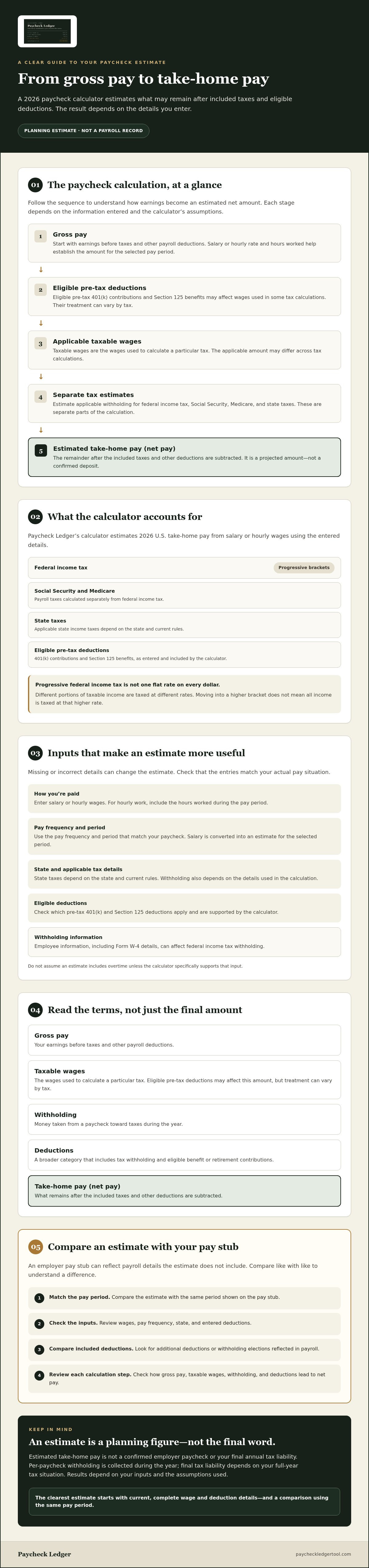
Several terms describe different steps in the calculation. Gross pay is your earnings before taxes and other payroll deductions. Taxable wages are the wages used to calculate a particular tax. Eligible pre-tax deductions can affect this amount, although their treatment can vary by tax. Withholding is money taken from a paycheck toward taxes. Deductions is a broader category that includes tax withholding and eligible benefit or retirement contributions. Take-home pay, also called net pay, is what remains after the included amounts are subtracted.
A paycheck is the payment an employee receives, while an accompanying pay stub can show how the amount was calculated. For background on the term and its connection to pay stubs, see Paycheck.
Gross pay versus net pay
Think of the calculation as a sequence, not one flat deduction. Start with gross earnings for the pay period. Subtract eligible pre-tax deductions to determine the applicable taxable wages, estimate withholding, then subtract the included taxes and other deductions. The remainder is estimated net pay. For hourly work, earnings depend on the wage and hours entered. For salary, the annual amount is converted into an estimate for the relevant pay period.
What an estimate can and cannot tell you
A paycheck calculator gives you a planning figure, not a guaranteed deposit amount. An employer’s payroll record may reflect details the estimate doesn’t include, such as additional deductions or withholding elections. Compare like with like: use the same pay period and check which deductions appear in each calculation.
Estimated take-home pay is the net amount a calculator projects after accounting for the taxes and deductions it includes. It is not a confirmed employer paycheck or your final annual tax liability. Per-paycheck withholding is collected during the year, while your final tax liability depends on your full-year tax situation. The estimate can help you understand the steps between earnings and net pay, but it isn’t legal, tax, or financial advice.
How a paycheck calculator turns wages into estimated take-home pay
A paycheck estimate follows a sequence: calculate earnings, account for eligible pre-tax deductions, determine the wages used in relevant tax calculations, estimate taxes, then subtract included taxes and deductions to arrive at net pay. Each step depends on your inputs. Salary or hourly wages, pay frequency, state, and eligible deductions can all affect the result.
Taxes are separate parts of the calculation, not one flat percentage applied to every dollar. Federal income tax uses progressive brackets, so different portions of taxable income are taxed at different rates. Moving into a higher bracket doesn’t mean all your income is taxed at that higher rate. Social Security and Medicare are payroll taxes calculated separately from federal income tax. Applicable state income taxes depend on the state and current rules.
From salary or hourly wages to gross pay
For salary, the starting input is your annual earnings, which the calculator uses to estimate pay for the selected pay frequency. For hourly work, the starting point is your hourly rate and hours worked during the pay period. The hours and pay frequency affect estimated gross pay. Enter the period that matches how often you’re paid, and don’t assume an estimate includes overtime unless the tool specifically supports that input.
How taxes and pre-tax deductions affect the estimate
Eligible pre-tax 401(k) contributions and Section 125 benefits can change the wages used in some tax calculations. Their treatment isn’t necessarily the same for every tax. Federal income tax withholding is distinct from Social Security and Medicare calculations, and state tax rules can differ too. The IRS explains how employee information, including Form W-4 details, affects tax withholding.
The calculation order is earnings, eligible pre-tax deductions, applicable taxable wages, separate tax estimates, and remaining net pay. This sequence helps explain why entering a deduction can change the result without changing your gross earnings.
Actual withholding depends on individual circumstances and current tax rules. The amount withheld from one paycheck isn’t necessarily the same as your final annual tax liability. A calculator provides an estimate based on its inputs and assumptions, not a confirmed employer payroll record or tax advice. Paycheck Ledger’s 2026 estimate includes federal income tax, Social Security, Medicare, and state taxes, along with eligible 401(k) and Section 125 deductions. For a practical estimate, try the 2026 paycheck calculator and check that your wage type, pay frequency, and deduction details match your situation.
Which paycheck calculator inputs make your estimate more reliable?
A paycheck calculator can only use the information it receives. An incomplete wage figure, mismatched pay period, or deduction entered twice can shift the estimate. Start with current records, then check which fields the calculator provides. Paycheck Ledger’s calculator accepts salary or hourly wages and accounts for eligible pre-tax 401(k) and Section 125 deductions. It also estimates state taxes, but check the live tool for available state selections and other input fields.
Check earnings, pay frequency, and tax details
Use a recent pay statement or offer details to verify your salary or hourly rate. For hourly pay, make sure the hours entered match the period you’re estimating. Select a pay schedule if the calculator offers that field, and match it to your payroll cycle. A frequency mismatch makes a per-paycheck result difficult to compare with your pay stub.
Filing status, state selection, and withholding details may affect the estimate if the tool supports those inputs. Check the calculator’s controls rather than assuming a field is included. Make sure any status or state selection reflects your situation. If a relevant field isn’t available, treat the result as a general estimate instead of assuming it accounts for that detail.
Enter eligible deductions without double-counting
Check your benefits enrollment information or pay statement for employee 401(k) contributions and Section 125 deductions. Enter an amount only in a matching field provided by the calculator. Don’t subtract it from your wages yourself and enter it again as a deduction, which would count it twice. If you’re unsure how a particular benefit affects taxable wages, consult a reliable guide to pre-tax deductions and check the calculator’s instructions.
- Confirm: Salary or hourly wage, and the hours used for an hourly estimate.
- Match: Pay frequency and state selection, if those controls are available.
- Verify: Filing status or withholding details only if the tool requests them.
- Check: Entered 401(k) and Section 125 amounts against your records, without duplicating deductions.
Use the same wage period, tax year, state, and deduction assumptions when comparing results from different calculators or with an employer pay stub. If the assumptions differ, the figures may not be directly comparable. Checking your inputs won’t make an estimate an exact payroll record, but it helps you see which details shape the result.
How to use a paycheck calculator and read its itemized estimate
Use the calculator in order: choose the wage type it supports, enter your pay details, add only relevant deductions and tax information shown in its fields, then review the estimate. Paycheck Ledger accepts salary or hourly wage inputs and accounts for eligible pre-tax 401(k) and Section 125 deductions. Available fields can vary, so follow the live calculator rather than assuming it asks for a particular detail.
Enter your pay details and calculate
Start with the wage type that matches how you’re paid. Enter your salary or hourly wage, then provide any additional information the tool requests. If it offers a pay frequency or state field, select the option that matches your payroll situation. Add eligible deduction amounts only in the corresponding fields. Before calculating, check the wage figure, pay period, and deduction entries for errors or duplicate amounts.
You can follow the same process without needing a sample paycheck amount: select salary or hourly pay, enter the relevant earnings, complete supported tax and deduction fields, and submit the information. Review the estimate before comparing it with a real pay statement. If the calculator doesn’t offer a field for a detail that affects your payroll, the estimate may not reflect it.
Read the estimated pay stub breakdown
Paycheck Ledger provides an itemized pay stub estimate. Use its listed lines to trace how the result moves from gross pay through applicable taxes and entered deductions to estimated net pay. Start with total earnings, then inspect each displayed withholding or deduction separately. This can help you identify whether a difference comes from taxes, a benefit contribution, or a detail that wasn’t included.
For a useful comparison, match the estimate to an employer pay stub from the same pay period and use similar assumptions. Check salary or hours, deductions, and any withholding choices reflected in the employer’s records. Employer-specific benefits or withholding details can explain why the deposited amount differs. The estimate is not an exact employer payroll record or your final tax liability.
For a closer explanation of each displayed line, consult the itemized pay stub guide. Then use the 2026 paycheck calculator to enter your supported details and review an itemized estimate. Treat the result as an estimate, not legal, tax, or financial advice.
Use Paycheck Ledger’s 2026 paycheck calculator for a clear estimate
Once you know which details shape a net-pay estimate, you can use them to build a more useful projection. Paycheck Ledger’s 2026 paycheck calculator accepts salary or hourly wage inputs. It estimates federal income tax using progressive brackets and includes Social Security, Medicare, and state taxes.
What Paycheck Ledger includes in its estimate
The estimate also accounts for eligible pre-tax 401(k) and Section 125 deductions. Its itemized pay stub estimate separates the result into calculation lines, so you can inspect how earnings are reduced by taxes and entered deductions rather than seeing only a net-pay figure. Check the calculator’s available fields as you enter information, and use only the details it requests.
To get started, choose the wage type that matches your pay and enter the corresponding earnings information. Add eligible deductions in the provided fields, then review the itemized output. The result can help you understand the calculation and plan around an estimated paycheck. Estimate your 2026 take-home pay with the calculator.
What to do if your estimate differs from your paycheck
A difference doesn’t automatically mean the estimate is wrong. First, check for input mismatches: confirm the wage amount, pay frequency, deductions, and any tax details you entered. Then compare equivalent pay periods. An estimate for one pay cycle won’t match a pay stub covering a different period.
Next, review the employer pay stub and payroll records for actual withholding and benefit deductions. Your employer may apply details that weren’t entered or aren’t represented in the calculator, including specific benefit amounts or withholding choices. The itemized estimate can help you narrow down which calculation line differs, but it isn’t an employer-issued payroll record.
For a closer look at how earnings become net pay, use a gross-to-net guide. If you’re comparing a projection with a deposit and need to trace the gap, a guide to paycheck differences can help you review the relevant lines. In either case, treat the calculator’s result as an estimate, not a guaranteed deposit or final annual tax liability. It isn’t legal, tax, or financial advice.
Put your 2026 take-home pay estimate to work
Gross pay is only the starting point. The amount left depends on the tax withholding and eligible deductions included in the calculation, as well as the accuracy of your inputs. Match your wage type and pay period to your actual earnings, then review the itemized result to see how each component affects estimated net pay.
Paycheck Ledger’s paycheck calculator estimates 2026 take-home pay from salary or hourly wages. It includes federal income tax, Social Security, Medicare, and state taxes, accounts for eligible pre-tax 401(k) and Section 125 deductions, and provides an itemized estimate. Compare it with an employer pay stub using the same pay period and details. Differences may reflect your inputs or employer-specific withholding and benefits.
Use the result as a planning reference, not an exact deposit prediction or final tax liability. It isn’t legal, tax, or financial advice. Use the 2026 paycheck calculator to review your pay details and see how the calculation comes together. With your inputs checked, you’ll have a clearer starting point for understanding take-home pay.
Frequently Asked Questions
How does a paycheck calculator estimate take-home pay?
A paycheck calculator estimates what remains after calculating applicable taxes and entered deductions. Paycheck Ledger starts with salary or hourly wage information, applies progressive federal income tax brackets, and includes Social Security, Medicare, and state taxes. Eligible pre-tax 401(k) and Section 125 deductions are also included. The itemized result shows estimated pay after those calculation steps. The amount depends on the details entered and is not a confirmed employer deposit.
Is a paycheck calculator accurate for 2026?
A calculator can estimate 2026 pay using the tax rules and assumptions built into it, but it can’t guarantee your exact paycheck. Accuracy depends on current calculation parameters and complete, correctly entered information, including wages and eligible deductions. Employer-specific benefits or withholding choices may not match the estimate. Compare the itemized result with a pay stub for the same period, and treat the figure as an estimate rather than a payroll record.
What information do I need to use a paycheck calculator?
Start with your salary or hourly wage, then provide the other details requested by the calculator. Pay frequency, state, filing status, or withholding information may affect an estimate if the tool includes those fields. Paycheck Ledger accounts for eligible pre-tax 401(k) and Section 125 deductions, so check your benefits or payroll records for those amounts. Enter only details supported by the calculator, and avoid counting a deduction twice.
Why is my paycheck calculator result different from my pay stub?
A difference can come from mismatched inputs or payroll details the calculator doesn’t include. Check that the wage amount, pay period, state, and entered deductions match the pay stub. Then compare the listed tax and deduction lines, not just the net amount. Your employer may apply specific benefits or withholding choices that differ from the estimate. The employer pay stub and payroll records show actual withholding for that paycheck.
Do pre-tax 401(k) contributions reduce take-home pay?
Yes. A 401(k) contribution is withheld from your earnings and directed to your retirement account, so the amount available as take-home pay decreases. A pre-tax contribution can also affect wages used for applicable tax calculations, but tax treatment varies by tax type and individual circumstances. If the calculator provides a 401(k) deduction field, enter the amount shown in your benefits or payroll information. Don’t subtract it separately as well.
Does a paycheck calculator show my final tax bill or refund?
No. A paycheck calculator estimates withholding and take-home pay for a pay period; it doesn’t determine your final annual tax liability or refund. Your full-year tax outcome depends on your broader income and tax circumstances, while a paycheck estimate uses the information and assumptions entered. Paycheck Ledger’s results are estimates, not a filed tax return or legal, tax, or financial advice.
Can I use a paycheck calculator if I am paid hourly?
Yes. Paycheck Ledger accepts hourly wage inputs for its 2026 take-home pay estimate. Enter your hourly rate and provide any additional earnings or pay-period details the calculator requests. If the tool asks for hours, use the hours that match the period you’re estimating. Review the result as an estimate, since actual payroll may include employer-specific withholding or deductions that aren’t reflected in the calculation.